
How Freelancers Can Use Lead Extraction Tools
Freelancers can use lead extraction tools to pull verified business contact information, names, emails, phone numbers, and locations, directly from sources like Google Maps and LinkedIn, then turn that data into targeted outreach campaigns without spending hours on manual research. This guide walks through exactly how to do it, step by step, with the settings and order that actually work.
If you're a freelancer trying to land new clients, the biggest bottleneck usually isn't skill, it's finding enough of the right people to pitch. Lead extraction tools solve that problem by automating the research side of prospecting so you can spend your time on outreach and closing, not copy-pasting business names into a spreadsheet.
What Are Lead Extraction Tools (and Why Freelancers Need Them)
Lead extraction tools are software that pulls structured business data, like company name, category, address, phone number, website, and email, from public sources such as Google Business Profiles and LinkedIn. Instead of manually searching and recording this information, the tool does it in bulk.
For freelancers, this matters for three reasons:
Time savings. Manually finding 100 local business leads can take a full workday. A lead extraction tool can do it in minutes.
Consistency. Every lead comes with the same data fields, so your outreach list is clean and usable right away.
Scale. You can research an entire city or business category at once instead of one business at a time.
This is especially useful if you offer services like web design, marketing, copywriting, or consulting to local businesses, the kind of clients who often don't have a strong online presence but are easy to identify by category and location.
How to Extract Local Business Leads From Google Maps
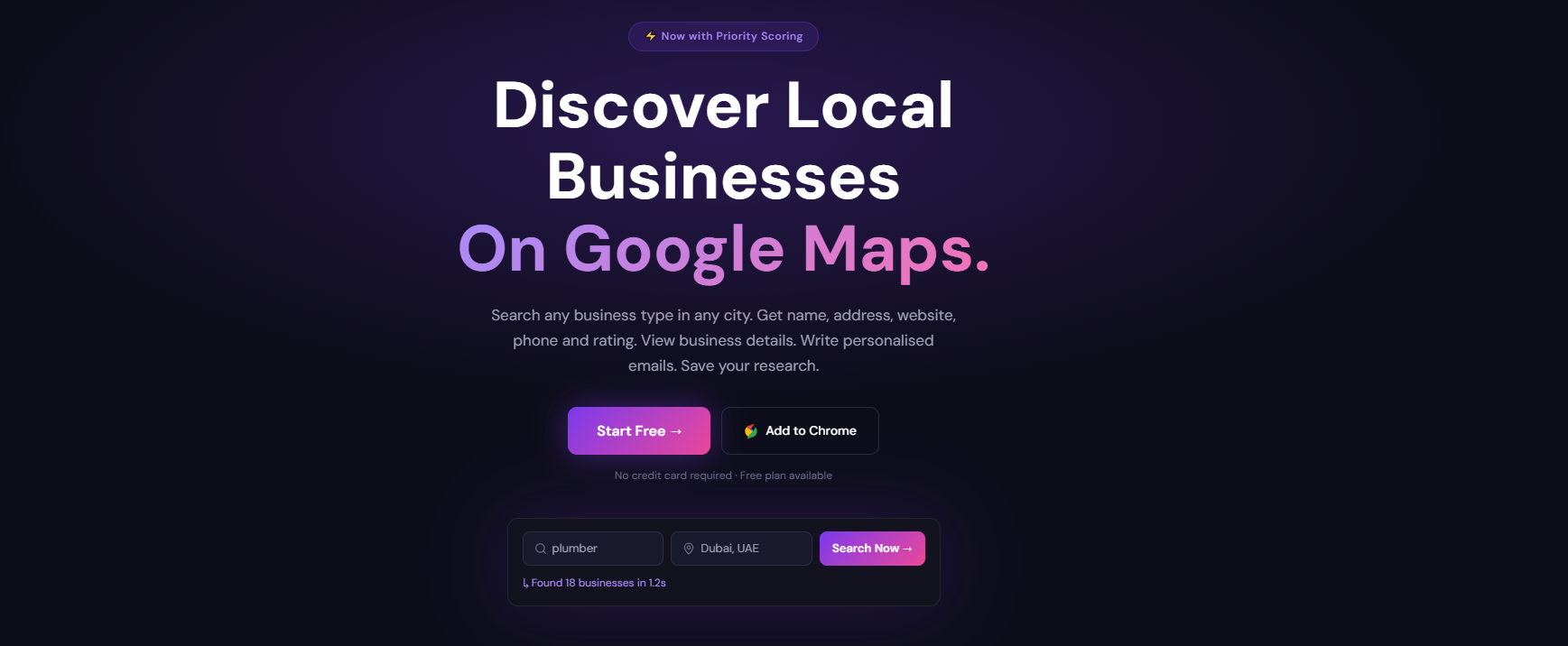
The most direct way to build a freelance client list is by pulling data straight from Google Business Profiles. Here's the process using The Map Leads:
Enter a business category or name. For example, "dentists," "HVAC contractors," or a specific company name.
Set your target location. Choose a city, region, or radius you want to prospect in.
Run the search. The tool pulls every matching business along with its available content info from its Google Business Profile.
Review and export. You can export the list as an SVG or save it directly inside your dashboard for later use.
Send outreach. From the same dashboard, you can send bulk emails to the businesses you've saved, with the messages generated by AI, all in one click.
Your saved lists live in the Lists dashboard, which keeps everything organized by search, category, or location so you're not starting from scratch every time you prospect a new niche.
Freelancer tip: Narrow your category and location before running the search. "Marketing agencies in Austin" gives you a far more usable list than a broad national search, because the leads are already qualified by geography and industry.
How to Extract Emails From LinkedIn
If your ideal clients are easier to find on LinkedIn than Google Maps, think B2B services, agencies, or corporate decision-makers, you'll want an email finder built for LinkedIn instead.
Here's how that process works:
Install the extension. Add the MapLeads – LinkedIn Email Finder extension from the Chrome Web Store.
Connect your LinkedIn account. Log in and link your account through the extension.
Add your API key. This activates the extension so it shows up directly on LinkedIn profiles.
Search LinkedIn as normal. Browse individual profiles or search results in bulk.
Extract emails. Pull a single contact's email or extract emails in bulk from a whole list of profiles.
Save or download. Export your results, or save them straight into your dashboard for outreach.
This method works well for freelancers targeting specific job titles, like marketing managers or founders, rather than businesses by category.
How to Turn Extracted Leads Into Client Outreach
Data extraction is only half the job. The real value comes from what you do with the list afterward.
Once your leads are saved, whether from Google Maps or LinkedIn:
Go to your Campaigns dashboard to build a bulk email campaign.
Use the AI-generated email option to draft outreach messages based on the business data you've collected.
Track opens, responses, and performance from the same dashboard so you know which campaigns are converting.
Connect other tools through Integrations if you're managing leads alongside a CRM or other outreach software.
Bulk email works best when your list is tightly segmented. A campaign sent to "plumbers in three cities" will typically get a better response rate than one blasted across every category you've ever searched.
Common Mistakes to Avoid
A few habits quietly kill response rates for freelancers using lead extraction tools:
Sending generic emails. Even AI-generated messages need a personal detail, business name, location, or category, to avoid looking like spam.
Skipping list segmentation. Mixing unrelated business categories into one campaign weakens your messaging and your results.
Ignoring data freshness. Business contact details change. Re-run searches periodically rather than relying on old lists.
Overloading one email account. High-volume sending without proper warm-up can hurt deliverability. Start with smaller batches and scale up.
What to Expect in Real Life
Realistically, lead extraction tools don't replace outreach skill, they replace the research grind. You'll still need a solid pitch and a clear value proposition to convert leads into paying clients. What changes is volume: instead of manually finding 20 leads a week, you can find hundreds, which means more shots at landing the clients who are actually a good fit.
For freelancers just starting out, a good first test is a single niche and location, pull 50 to 100 leads, run one outreach campaign, and see how response rates hold up before scaling further.
If you want, I can also draft a sample outreach email template freelancers could use with this workflow, just let me know the service you're pitching.
Comments
Join the discussionNo comments yet. Be the first to comment.